Technical SEO Checklist for WordPress: 25 Fixes That Move Rankings in 2026
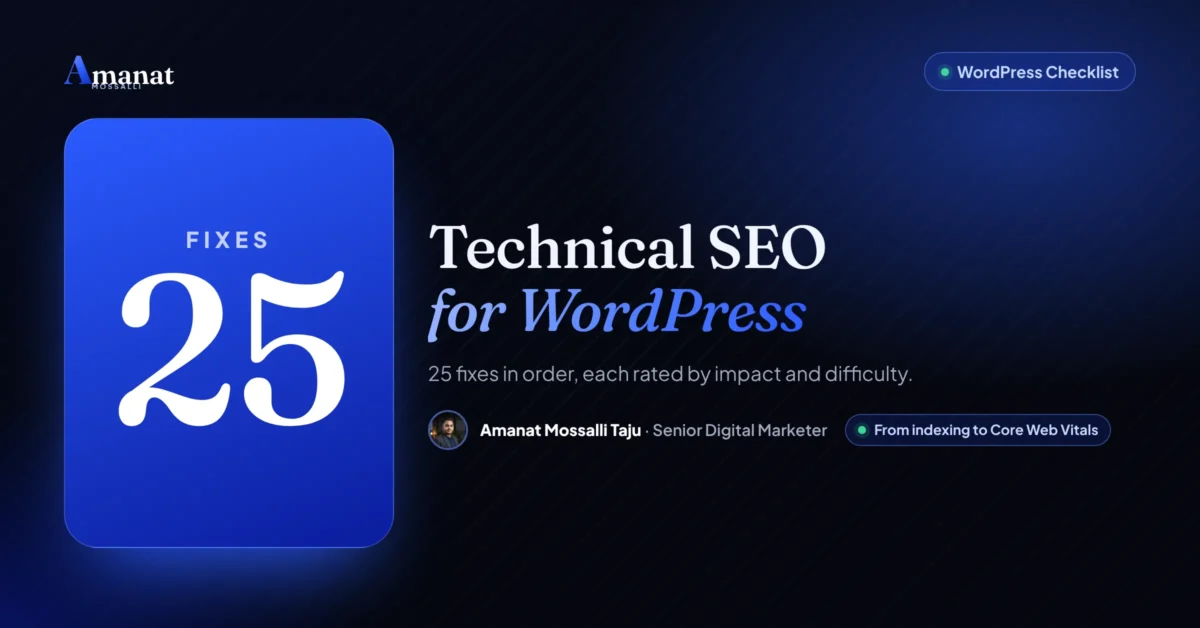
25 technical SEO fixes for WordPress in the order I actually do them, each rated by impact and difficulty, with Rank Math and Search Console steps you can follow.

2.5 seconds. That’s how fast Google wants your main content to load, according to its Core Web Vitals page. Most WordPress sites I open from Bangladesh miss it. And speed isn’t even the first problem.
This technical SEO checklist for WordPress starts further back, with whether Google can find your pages at all. I’ve worked on more than 235 brands, and most of them ran WordPress. The same handful of faults turned up on nearly every one the first time I logged in.
There are 25 fixes below, in seven phases, in the order that moves rankings fastest. Each carries an impact rating and a difficulty rating. Do the high-impact easy ones first. Hand the hard ones to your developer. Everything here was checked against Google’s and WordPress’s own pages on 12 November 2026.
How Should You Work Through This Technical SEO Checklist for WordPress?
Top to bottom. Later fixes depend on earlier ones. Speed work is wasted if Google is blocked from your pages in the first place.
Each of the 25 fixes carries two labels.
Take a full backup of the site and the database. Some of these fixes change redirects and settings that hit every page at once.
Want a quick first pass before you start? My free SEO audit tool gives you a starting list in a minute. Then work through the phases below by hand, because no tool reads your Search Console for you.
Phase 1: Can Google Even Find Your Pages?
Check this before anything else. If Google can’t crawl or index your pages, the rest of the list is decoration. These seven fixes catch most of the indexing problems Search Console reports on WordPress sites.
1. Verify Google Search Console (High impact, Easy)
Add your site as a Domain property. That covers http, https, www and non-www in one place. Rank Math and most SEO plugins can drop in the verification code for you.
Add a URL-prefix property for your main address too. It takes two minutes. Google’s disavow help page says the disavow tool does not support Domain properties. You’ll probably never need it, but you won’t want to set it up in a panic.
2. Untick "Discourage search engines" (High impact, Easy)
Settings, then Reading. If “Discourage search engines from indexing this site” is ticked, untick it. Developers tick it while building and forget. The WordPress core team notes that this setting also switches off WordPress’s built-in sitemaps.
3. Check robots.txt (High impact, Easy)
Open yoursite.com/robots.txt. Make sure it doesn’t block the whole site or your CSS and JavaScript files. And remember, Google says robots.txt is not a way to keep a page out of Google. To hide a page, use noindex.
A word on AI crawlers, because clients ask me weekly. Some owners now block Google-Extended to keep content out of Gemini training. Google’s crawler documentation says Google-Extended “does not impact a site’s inclusion or ranking in Google Search”, as Search Engine Roundtable reported. So that line won’t hurt your rankings. Blocking Googlebot itself would.
4. Use one clean XML sitemap (High impact, Easy)
WordPress has shipped a built-in sitemap at /wp-sitemap.xml since version 5.5. SEO plugins usually replace it with their own. Rank Math’s lives at /sitemap_index.xml. Use one, not both, and include only pages you want in Google.
5. Submit the sitemap in Search Console (Medium impact, Easy)
Open Sitemaps and paste the sitemap URL. Come back in a few days and check that the status says Success.
6. Read the Page indexing report (High impact, Medium)
Indexing, then Pages. Read the reasons pages aren’t indexed. Some are fine, like redirects. Others need you to act.
| Reason in Search Console | What it usually means on WordPress | What to do |
|---|---|---|
| Excluded by noindex tag | A plugin or setting hides the page | Fine for tags and thank-you pages. Remove noindex on pages that should rank |
| Crawled, currently not indexed | Google saw it but did not think it was worth storing | Improve or merge thin pages |
| Discovered, currently not indexed | Google knows the URL but has not crawled it yet | Add internal links and check server speed |
| Duplicate without user-selected canonical | Several URLs show the same content | Add canonical tags or redirect copies |
| Not found (404) | Deleted or mistyped URLs | Redirect if the page moved, otherwise leave it |
| Blocked by robots.txt | A robots.txt rule stops crawling | Remove the rule if the page should rank |
Don’t chase every row to zero. A healthy shop always has some excluded URLs. What matters is whether pages you want to rank sit in the wrong bucket.
7. Noindex thin archive pages (Medium impact, Easy)
WordPress creates tag pages, date archives, author archives and attachment pages on its own. Most add nothing for a searcher. Set them to noindex in your SEO plugin unless they’re real, curated pages.
Phase 2: Five WordPress Settings Worth Changing Once
Change these once and you prevent a lot of future pain. Most take a few clicks.
8. Set clean permalinks (High impact, Easy on new sites)
Settings, then Permalinks, then “Post name”. A URL like /?p=123 tells nobody anything. On an old site, add 301 redirects before you change permalinks, or you’ll break every link you’ve ever earned.
There’s a newer reason too. WordPress 6.8 added speculative loading, which fetches the next page when a visitor starts to click a link. The core team’s note says it is off on sites without pretty permalinks. It’s also skipped for logged-in users. So plain URLs cost you a free speed gain as well.
9. Run only one SEO plugin (Medium impact, Easy)
Two SEO plugins print two sets of titles, canonicals and schema. Pick one, Rank Math or Yoast, and remove the other.
10. Finish the Rank Math setup wizard (Medium impact, Easy)
A careful Rank Math setup takes about 20 minutes. Run the wizard, pick your site type, connect Search Console, and turn on only the modules you need. In Rank Math’s sitemap settings guide, each post type and taxonomy has its own “Include in Sitemap” switch. Leave out anything you’ve set to noindex.
11. Write title and meta templates (Medium impact, Easy)
Set default title templates for posts, pages and products. Then write custom titles for your ten most important pages by hand. “Root Canal Cost in Dhaka | Dhanmondi Dental Clinic” earns more clicks than the bare page name.
12. Force one version of your domain (High impact, Medium)
The site should load on one address only, say https://www.yoursite.com. The other versions (http, non-www) should 301 redirect to it. Set the WordPress Address and Site Address to match, and clear any mixed content warnings.
The Server Under WordPress in 2026
Not a numbered fix, but it decides how hard the next phases will be. Old PHP on cheap hosting is the hidden cause behind a lot of slow, fragile sites.
WordPress 7.0 came out on 20 May 2026. The WordPress hosting handbook lists PHP 7.4 as the new minimum. It recommends PHP 8.4 or 8.5 for new installs, with MySQL 8.4 or a current MariaDB.
Open Tools, then Site Health, then Info, then Server. If it says PHP 7.4 or 8.0, ask your host to upgrade. Test on a staging copy first, because old plugins sometimes break on new PHP.
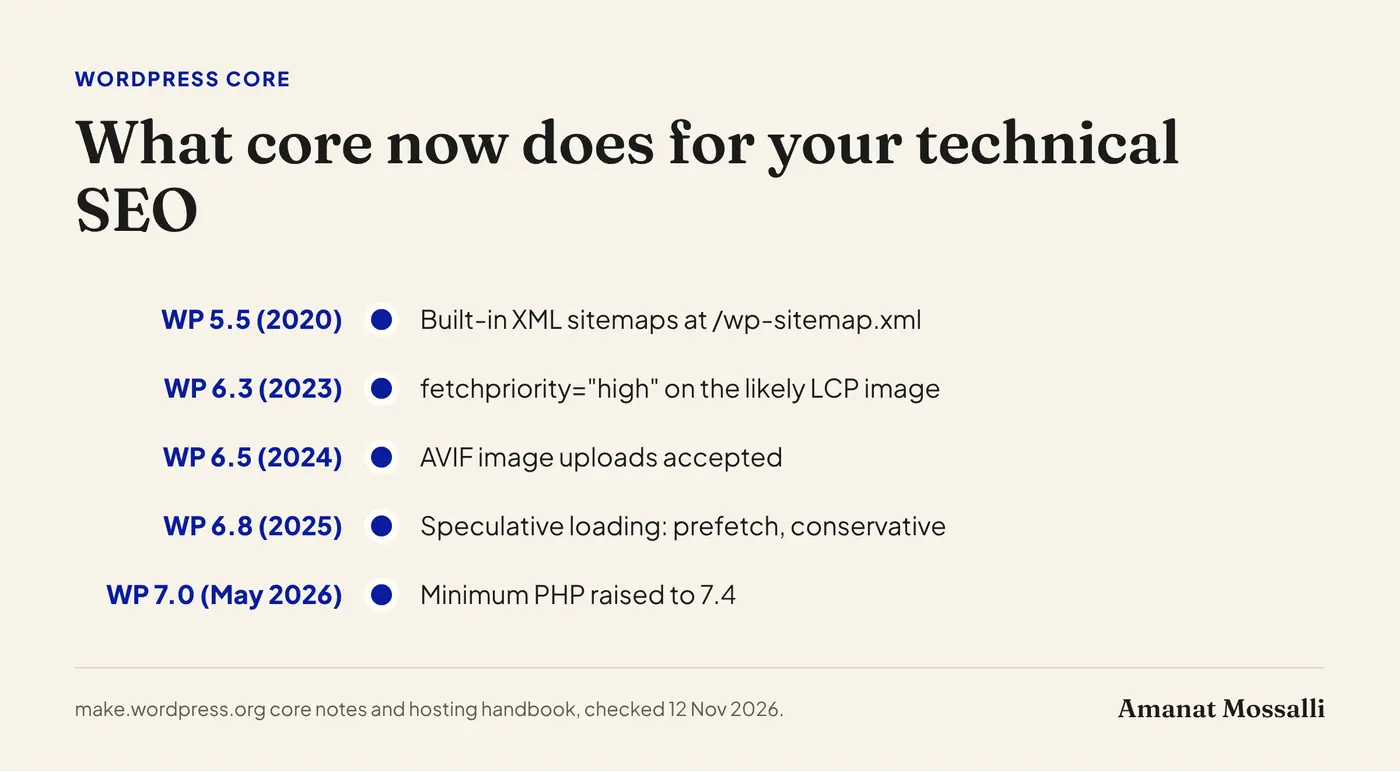
It helps to know what core already does, so you don’t install a plugin to repeat it.
- WordPress 5.5 (2020): built-in XML sitemaps at /wp-sitemap.xml.
- WordPress 6.3 (2023): adds fetchpriority=”high” to the image most likely to be your LCP, and never lazy-loads it. That’s from the 6.3 image performance note.
- WordPress 6.5 (2024): accepts AVIF uploads, per the 6.5 AVIF note.
- WordPress 6.8 (2025): speculative loading, set to prefetch with conservative eagerness.
- WordPress 7.0 (May 2026): minimum PHP raised to 7.4.
Phase 3: Why Do Duplicate Pages Need Canonicals and Redirects?
Because Google splits trust between copies. A canonical tag says which version of a page is the main one. A redirect sends people and Google from an old URL to the new one.
Google’s guide on duplicate URLs calls redirects and rel=”canonical” strong signals, and sitemap inclusion a weak one. It also says Google may still pick a different canonical if your signals disagree with each other.
13. Check every page has a self-referencing canonical (High impact, Easy)
Rank Math and Yoast add canonicals on their own. View the source of a few pages and search for “canonical”. It should point at the page’s own clean URL.
14. Handle WooCommerce filters and parameters (Medium impact, Hard)
Shops spawn URL versions through sorting, filters and tracking codes, like ?orderby=price or ?color=red. Point their canonical at the main category page. A clothing shop with 40 filter combinations can create thousands of near-duplicate URLs without anyone noticing.
Check the Page indexing report for “Duplicate without user-selected canonical”. If most rows carry a question mark, this is your problem. Fix the canonical first, then think about blocking crawling of the worst parameters.
15. Fix redirect chains (Medium impact, Medium)
A chain is page A redirecting to B, which redirects to C. Update the old rule so A goes straight to C. Use the redirect manager in your SEO plugin and re-check it after every site change.
Phase 4: How Do You Pass Core Web Vitals on WordPress?
Fast hosting, light pages, stable layouts. Core Web Vitals work on WordPress is mostly those three. Google’s targets are public, so you can measure yourself against them.
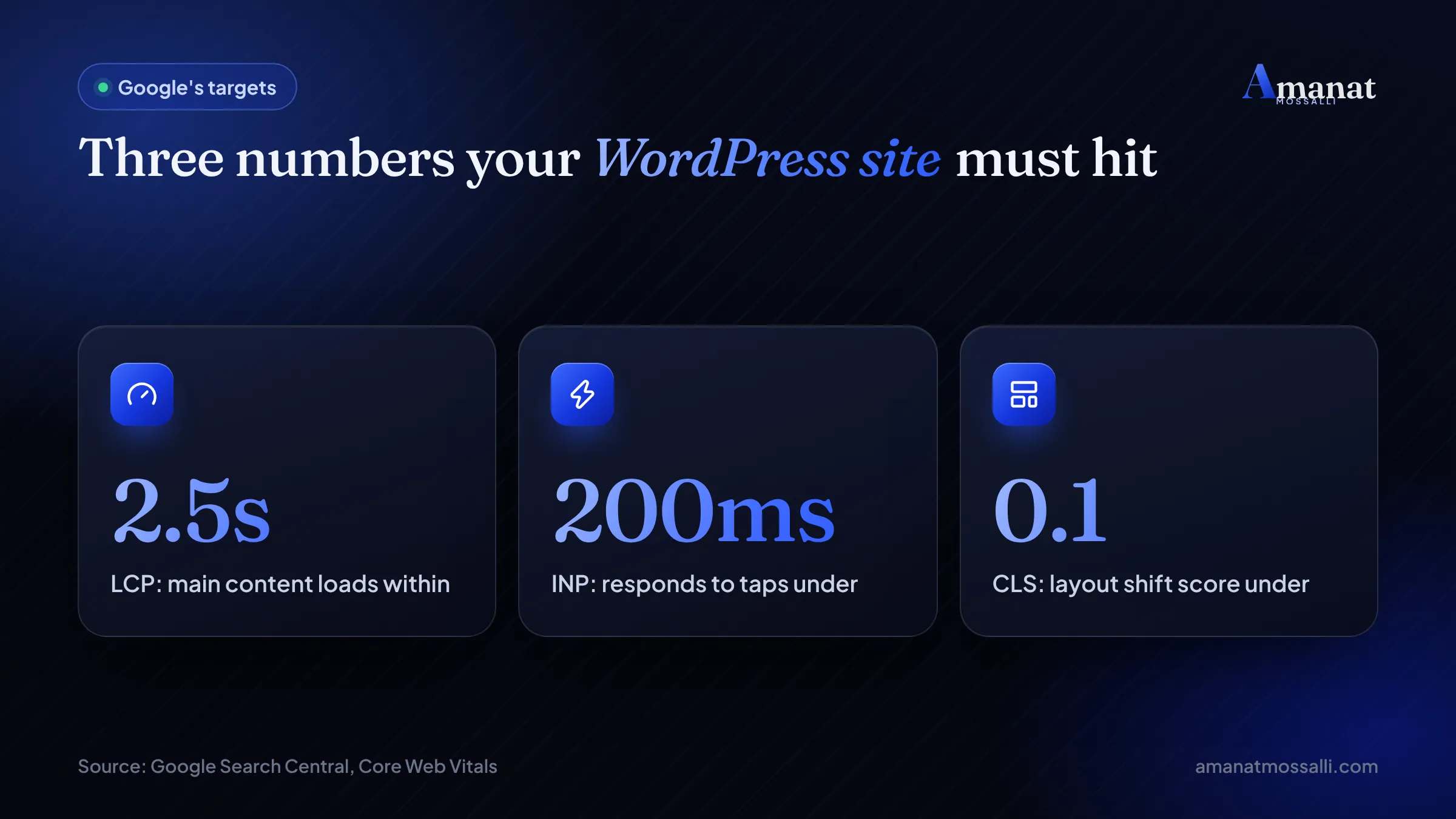
The thresholds come from Google’s Core Web Vitals page: LCP within 2.5 seconds, INP under 200 milliseconds, CLS under 0.1. Google says it “highly recommends” good scores for success with Search. Speed isn’t the only ranking factor. But slow pages lose visitors before they’ve read a word.
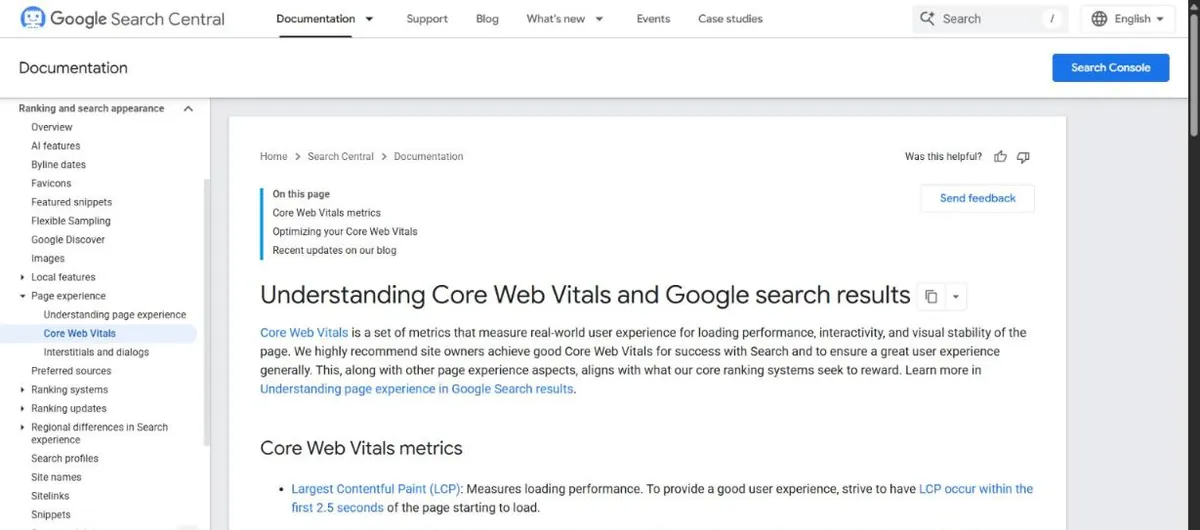
One detail most owners miss. Google’s web.dev guidance measures each target at the 75th percentile of page loads, mobile and desktop separately. So your fast office laptop doesn’t count. The slowest quarter of your real visitors decides the score.
Last May a cattle farmer near Chapainawabganj town called me from his farm. Qurbani bookings had opened that morning. Buyers in Dhaka were messaging him that the WooCommerce site “won’t open”. I loaded it on my phone on mobile data. The hero photo of the farm was 4 MB. A chat widget loaded before the price list did. PageSpeed Insights put mobile LCP at about 5 seconds.
Nothing was broken. It was just heavy. Over one week we moved him to a host with an Asian server, compressed every image to WebP and removed three plugins. Mobile LCP in the same test came down to about 2.3 seconds. The “site won’t open” messages stopped within days. His own phone told him the difference before any report did.
16. Use decent hosting and page caching (High impact, Medium)
Cheap shared hosting is the most common cause of slow WordPress sites I see. Pick a host with a server near your visitors. For a Bangladeshi audience, a nearby Asian data centre plus a CDN usually beats a server on the far side of the world. Add a page caching plugin or use the host’s built-in cache.
17. Compress images and serve WebP (High impact, Easy)
Resize images to the size they display at, then convert to WebP. AVIF is smaller still, and WordPress has accepted AVIF uploads since 6.5. Check your host’s image library supports it before you switch.
Lazy-load images below the fold, never the main image at the top. Core already handles this on most themes. Page builders and some sliders override it, so view the source and check your hero image has no loading=”lazy”.
18. Remove plugins you don't need (Medium impact, Easy)
Every plugin can add scripts to every page. Deactivate, test, delete. Sliders, social feeds and chat widgets are the usual suspects.
19. Cut heavy scripts and fonts (Medium impact, Medium)
Load two font weights, not eight. Delay third-party scripts like chat and heatmaps until after the page loads. Page builders can be heavy, so keep layouts simple.
INP is the metric these scripts hurt most. It measures how fast the page reacts when someone taps. A heavy chat widget or a pile of tracking tags can push it past 200 ms on a budget phone.
20. Stop layout shifts (Medium impact, Medium)
Set width and height on images and embeds. Reserve space for ads and cookie banners. If text jumps when a font loads, preload the font or use a system font.
Phase 5: Does Your Site Pass Mobile-First Indexing?
Google indexes and ranks the mobile version of your site. With mobile-first indexing, what a phone sees is what Google judges.
Google announced the final phase of the switch in June 2024. PPC Land’s summary notes that sites not accessible on mobile will likely drop from the index after 5 July 2024. That date has long passed.
Google’s mobile-first indexing guide asks for the same main content, the same structured data and the same robots meta tags on mobile and desktop. It also says Google won’t load content that needs swiping, clicking or typing to appear.
21. Show the same content on mobile (High impact, Medium)
Some themes hide sections on mobile to look tidy. If those sections hold key text, Google may never see it. Accordions and tabs are fine, as long as the content sits in the page HTML.
22. Test on a real phone and mobile data (Medium impact, Easy)
Open the site on a budget Android phone using mobile data, not office Wi-Fi. Check that buttons are easy to tap and text reads without zooming.
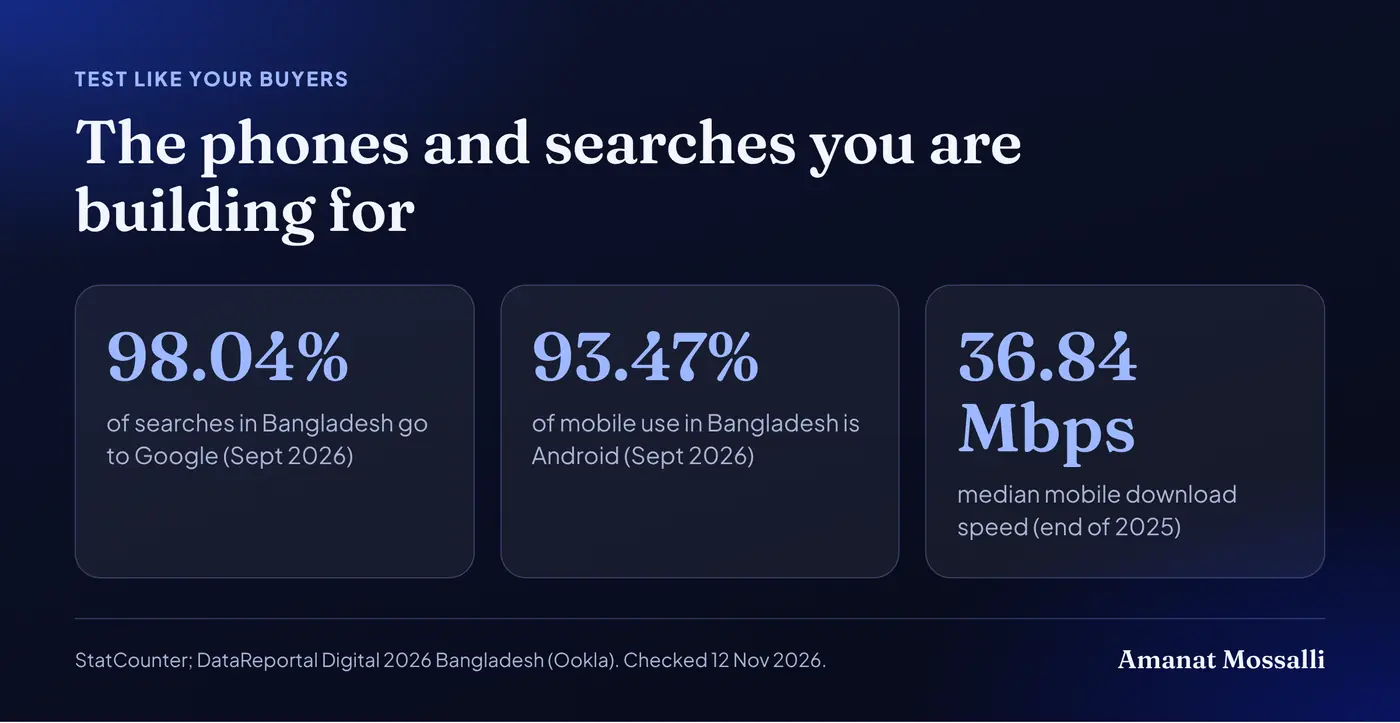
Why Android? StatCounter puts Android at 93.47% of mobile use in Bangladesh in September 2026. Its search engine table gives Google 98.04% of searches the same month. DataReportal’s Digital 2026 Bangladesh report puts the median mobile download speed at 36.84 Mbps at the end of 2025. Signal varies a lot outside city centres, so a median hides plenty of slow phones.
Phase 6: Which Schema Should a WordPress Site Add?
The basics from your SEO plugin, plus custom schema only where it truly fits. The schema your SEO plugin generates is enough for most WordPress sites.
Google recommends JSON-LD for structured data and suggests testing with the Rich Results Test. Schema helps Google understand a page. It can make the page eligible for rich results. It doesn’t promise them.
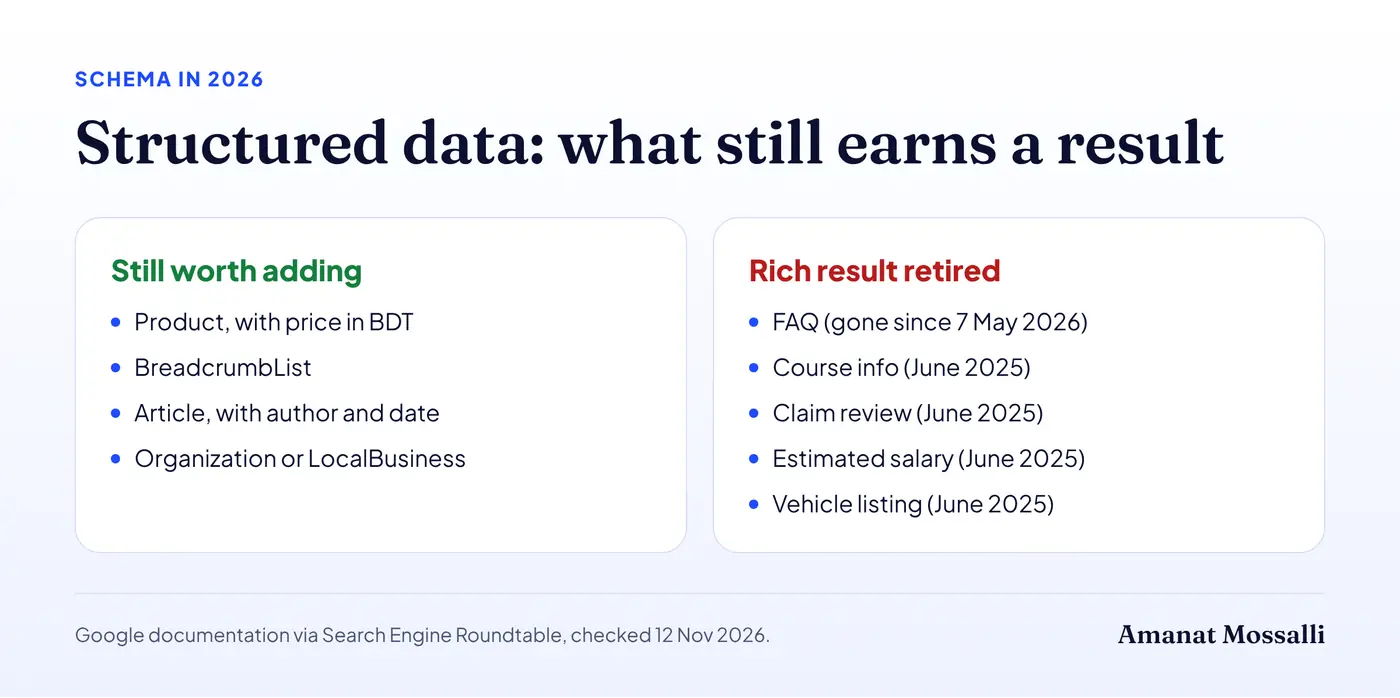
The list of rich results has also shrunk. In June 2025 Google dropped seven types, including Course info, Claim review, Estimated salary and Vehicle listing, as Search Engine Roundtable reported. Then FAQ went. Google’s FAQ documentation now says: “As of May 7, 2026, FAQ rich results are no longer appearing in Google Search.” Search Engine Roundtable adds that the Search Console report and Rich Results Test support were removed in June 2026.
23. Set Organization or LocalBusiness schema (Medium impact, Easy)
In Rank Math, fill in your business name, logo, address, phone and opening hours. A clinic in Dhanmondi or a shop in Agrabad should use LocalBusiness or a more specific type. Keep these details identical to your Google Business Profile.
24. Add the right schema to key templates (Medium impact, Medium)
- Article for blog posts, with author and date.
- Product for WooCommerce products, with price in BDT and stock status.
- BreadcrumbList for every page with breadcrumbs.
- FAQ only where a real FAQ is visible on the page. It no longer earns a rich result, so don’t spend developer hours on it.
Already have FAQ markup? John Mueller said sites don’t need to act, as reported by Search Engine Roundtable. Leave it, or remove it at your next redesign. Run your key templates through the Rich Results Test. Fix errors first, then the warnings that matter.
Phase 7: Where Are the Broken Links Hiding?
In Search Console and in a crawler. Fix them in order of traffic. The fix is usually a redirect, a corrected link, or a deleted page you simply leave alone.
25. Fix broken internal links and orphan pages (High impact, Medium)
- 1Crawl the site with a free crawler, or use Rank Math’s 404 monitor.
- 2List internal links that return 404 and update them to the right page.
- 3Redirect moved pages with a 301, straight to the final URL.
- 4Find orphan pages, which nothing links to, and link them from related posts.
- 5Link your most important pages from the menu or the homepage.
Internal links are how Google finds and values your pages. A page buried five clicks deep with nothing pointing at it often gets stuck in “Discovered, currently not indexed”.
They also push traffic to your best pages. I explain how in how to increase organic traffic in Bangladesh. For the wider audit beyond WordPress, see my guide on how to do an SEO audit.
All 25 Fixes on One Screen
Copy this table into a sheet and tick each row as you go. I keep a version of it for every site I manage.
| # | Fix | Impact | Difficulty |
|---|---|---|---|
| 1 | Verify Google Search Console | High | Easy |
| 2 | Untick “Discourage search engines” | High | Easy |
| 3 | Check robots.txt | High | Easy |
| 4 | Use one clean XML sitemap | High | Easy |
| 5 | Submit sitemap in Search Console | Medium | Easy |
| 6 | Read the Page indexing report | High | Medium |
| 7 | Noindex thin archives | Medium | Easy |
| 8 | Set clean permalinks | High | Easy |
| 9 | Run one SEO plugin | Medium | Easy |
| 10 | Finish Rank Math setup | Medium | Easy |
| 11 | Title and meta templates | Medium | Easy |
| 12 | Force one domain version | High | Medium |
| 13 | Self-referencing canonicals | High | Easy |
| 14 | Handle filters and parameters | Medium | Hard |
| 15 | Fix redirect chains | Medium | Medium |
| 16 | Better hosting and caching | High | Medium |
| 17 | Compress images, use WebP | High | Easy |
| 18 | Remove unused plugins | Medium | Easy |
| 19 | Cut heavy scripts and fonts | Medium | Medium |
| 20 | Stop layout shifts | Medium | Medium |
| 21 | Same content on mobile | High | Medium |
| 22 | Test on a real phone | Medium | Easy |
| 23 | Organization or LocalBusiness schema | Medium | Easy |
| 24 | Schema on key templates | Medium | Medium |
| 25 | Fix broken links and orphan pages | High | Medium |
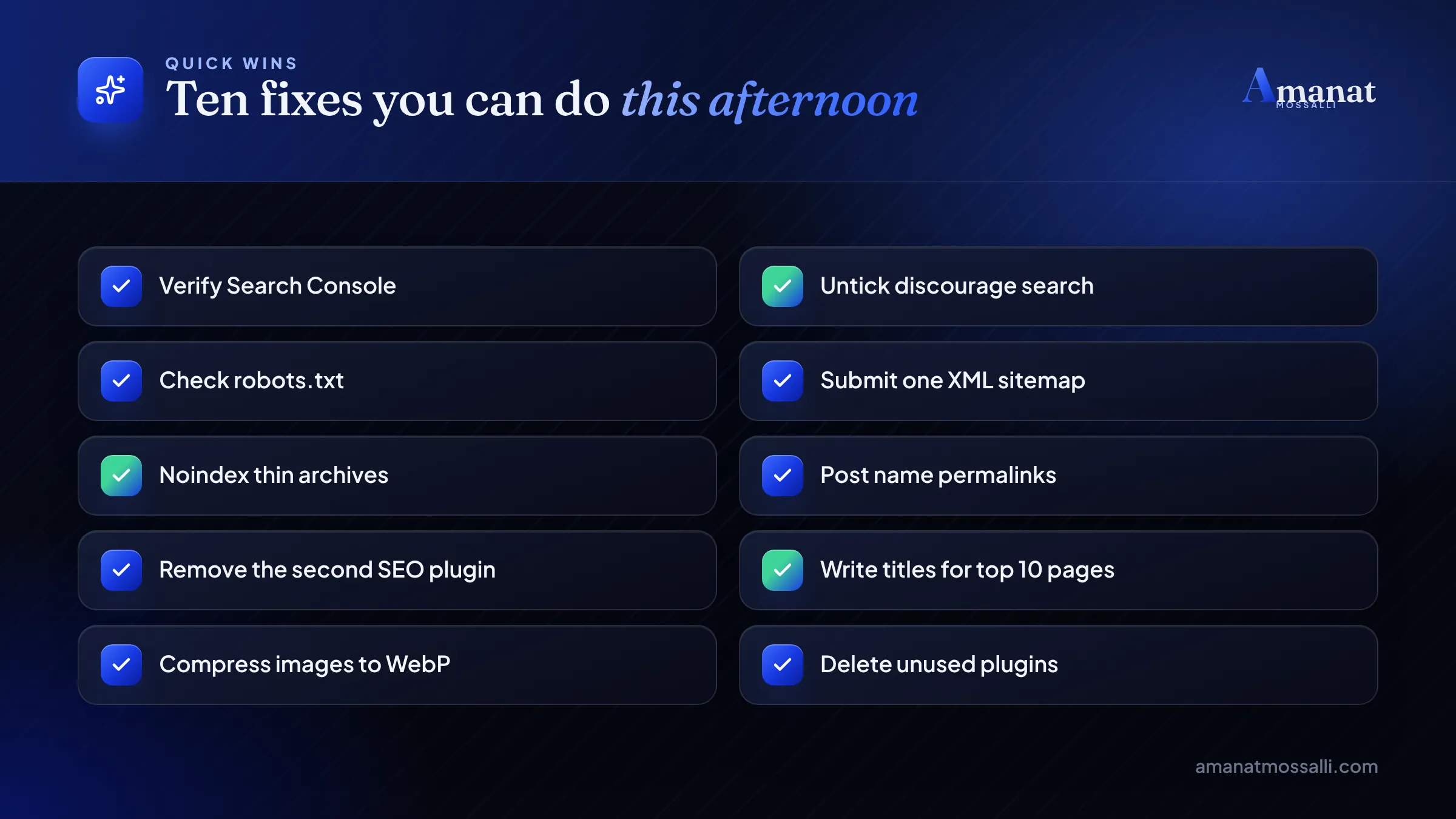
Fifteen of the 25 fixes are rated Easy, and not one of them is low impact. If you only have a Friday afternoon, work down the Easy rows first.
Which Mistakes Do WordPress Owners Make Most?
Plugin and settings changes made without checking the result. Easy to make, easy to miss for months.
- Launching a new site with “Discourage search engines” still ticked.
- Changing permalinks on an old site without redirects.
- Running two SEO plugins at once.
- Blocking pages in robots.txt and expecting them to leave Google.
- Lazy-loading the main hero image, which slows LCP.
- Installing a speed plugin, a security plugin and a cache plugin that fight each other.
- Paying a developer to build FAQ schema for a rich result Google no longer shows.
- Staying on old PHP because “the site still works”.
- Never opening Search Console after setup.
The redesign is the classic case. New theme, site looks great, traffic falls off a cliff.
Earlier this year a wholesale stationery supplier in Gendaria relaunched its WordPress site with a new developer. Exercise books, pens, office files. Three weeks later the owner sent me a voice note: the phone had gone quiet. In Search Console, the Page indexing report showed about 140 pages under “Excluded by noindex tag”. The staging box in Settings, Reading was still ticked. Unticking it took ten seconds. We resubmitted the sitemap and requested indexing for the top pages. Most were back in Google within about three weeks, and the enquiry calls returned with them. The fault had shown up in Search Console within days. Nobody had looked.
How Do You Keep It Fixed Month After Month?
A short check every month, and another after every big update. Technical SEO breaks quietly, usually right after a plugin, theme or hosting change.
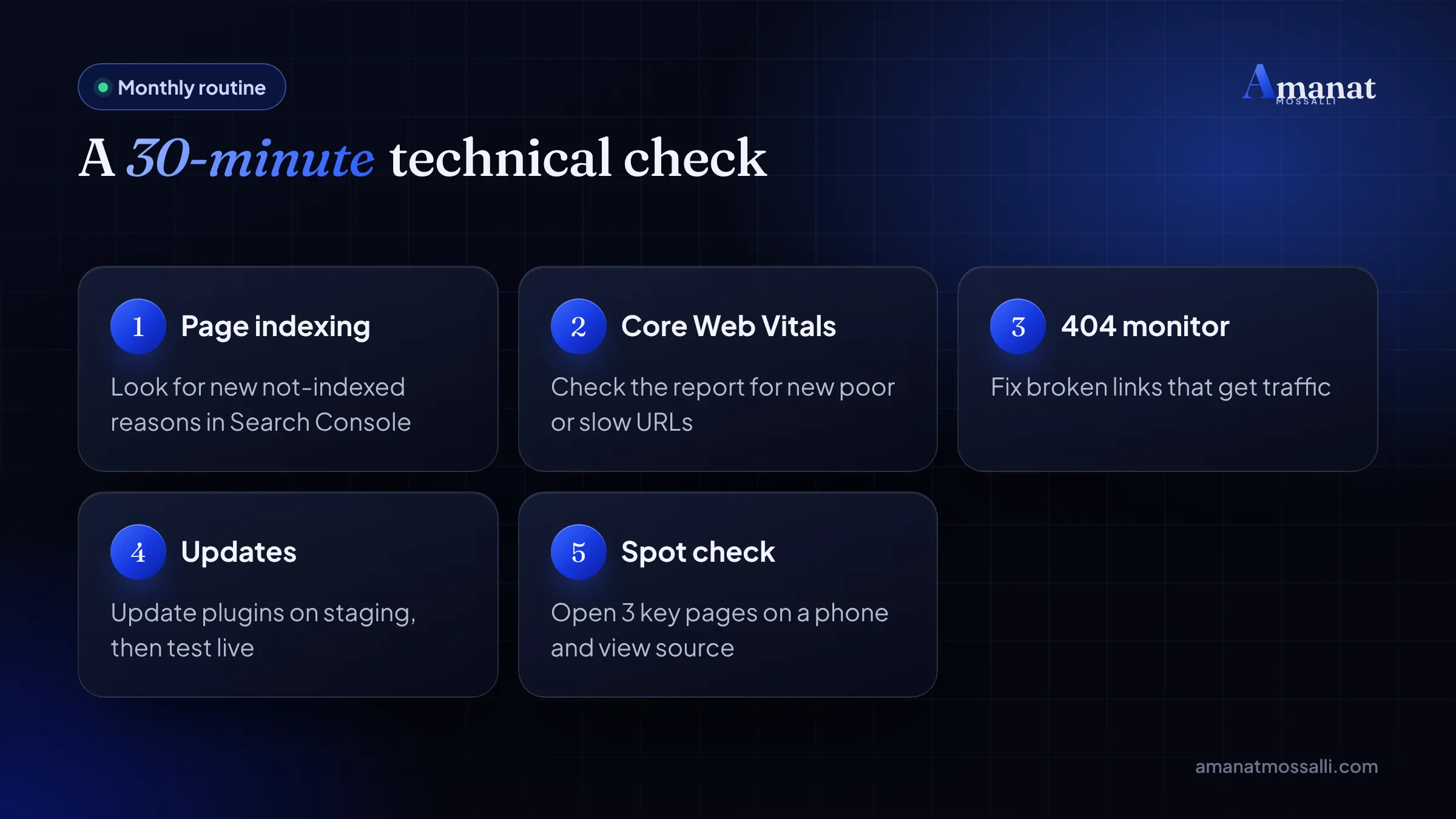
My own routine takes about half an hour. Page indexing first, looking for new not-indexed reasons. Then the Core Web Vitals report, for new poor or slow URLs. Then the 404 monitor, fixing broken links that still get traffic. Plugin updates go on staging before the live site. Last, I open three key pages on a phone on mobile data.
Running a shop? This routine matters even more. Product pages change daily, and each change can spawn duplicates or broken links. My post on why SEO matters for e-commerce in Bangladesh explains what’s at stake.
FAQ: Technical SEO Checklist for WordPress
What is technical SEO in WordPress?
Is Rank Math or Yoast better for technical SEO?
Does WordPress create an XML sitemap automatically?
Why are my WordPress pages not indexed by Google?
How do I improve Core Web Vitals on WordPress?
How often should I do a technical SEO audit?
Can I do technical SEO myself without a developer?
If You Only Do One Thing: Open the Page Indexing Report
Don’t try to finish this technical SEO checklist for WordPress in a day. Do Phase 1 today, because indexing problems block everything else. Then take one phase a week.
The cattle farm site was slow, and slow was fixable in a week. The stationery site was invisible, and no amount of speed work would have fixed that. So start where Google starts.
- 1Verify Search Console and submit your sitemap.
- 2Check the Settings, Reading box and your robots.txt.
- 3Open the Page indexing report and write down the top three reasons.
- 4Check your PHP version in Site Health.
- 5Test your homepage in PageSpeed Insights on mobile.
Put a reminder in your phone for the first Saturday of every month. Thirty minutes with Search Console then is cheaper than three weeks of lost enquiries later. If you hit a problem you can’t read, the WordPress development and tracking and analytics pages show where I can take over.

Amanat Mossalli Taju
Senior Digital Marketer & SEO Expert, Dhaka, BangladeshI have grown 235+ brands over more than seven years with SEO, Google and Meta Ads, server-side tracking, WordPress and AI automation. Half of my clients are in the UK, USA, Australia and Canada. Everything I write here comes from real client work.
Want this done for your business?
Book a free 15-minute call. I look at your site and ads before we talk, so you leave with clear next steps.