Website Security Checklist: 20 Steps to Protect Your WordPress Site
Twenty WordPress security steps in the order I'd do them, a priority table, and a calm first-hour plan for when a site does get hacked.

A website security checklist is a short list of habits and settings that close the doors attackers actually use. For a WordPress site, that means seven areas: hosting, logins, updates, plugins, backups, server settings and monitoring. Most of the 20 steps below cost nothing. A few need your developer for an hour.
I’m Amanat Mossalli Taju. I build, fix and market WordPress sites for clients in Bangladesh and abroad, so I see hacked sites more often than I’d like. This checklist follows the official WordPress hardening guide, OWASP’s header advice and Patchstack’s 2026 data. I re-checked every source on 12 November 2026.
What Should a Website Security Checklist Cover?
It should cover all seven areas. Skip one and the others have a gap. A strong password doesn’t help if a nulled theme has a backdoor. A good backup doesn’t help if nobody can restore it.
Here’s the full website security checklist with my priority for each step. Do every “Today” item before you read anything else on this page.
| # | Step | Group | Priority |
|---|---|---|---|
| 1 | Pick a host that keeps PHP and servers patched | Hosting | This month. |
| 2 | Run the whole site on HTTPS | Hosting | Today. |
| 3 | Use SFTP, not plain FTP | Hosting | This week. |
| 4 | Strong, unique passwords for every account | Logins | Today. |
| 5 | Two-factor login for admins | Logins | Today. |
| 6 | Fewer admins, right user roles | Logins | This week. |
| 7 | Limit login attempts | Logins | This week. |
| 8 | Update WordPress core | Updates | Today. |
| 9 | Turn on plugin and theme auto-updates | Updates | Today. |
| 10 | Delete unused plugins and themes | Plugins | Today. |
| 11 | Install only from trusted sources | Plugins | Always. |
| 12 | Daily off-site backups | Backups | Today. |
| 13 | Keep several backup copies | Backups | This week. |
| 14 | Test a restore | Backups | This month. |
| 15 | Correct file permissions | Server | This week. |
| 16 | Disable the file editor | Server | This week. |
| 17 | Change the database prefix on new sites | Server | At setup. |
| 18 | Add security headers | Server | This month. |
| 19 | Scan and monitor the site | Monitoring | This week. |
| 20 | Watch Search Console and logs | Monitoring | Ongoing. |
Why WordPress Sites Get Hacked So Often
If you’ve ever wondered how to protect website from hackers, start with where the holes are. Most attacks come through plugins, not WordPress itself. That’s good news, because your plugin list is something you control.
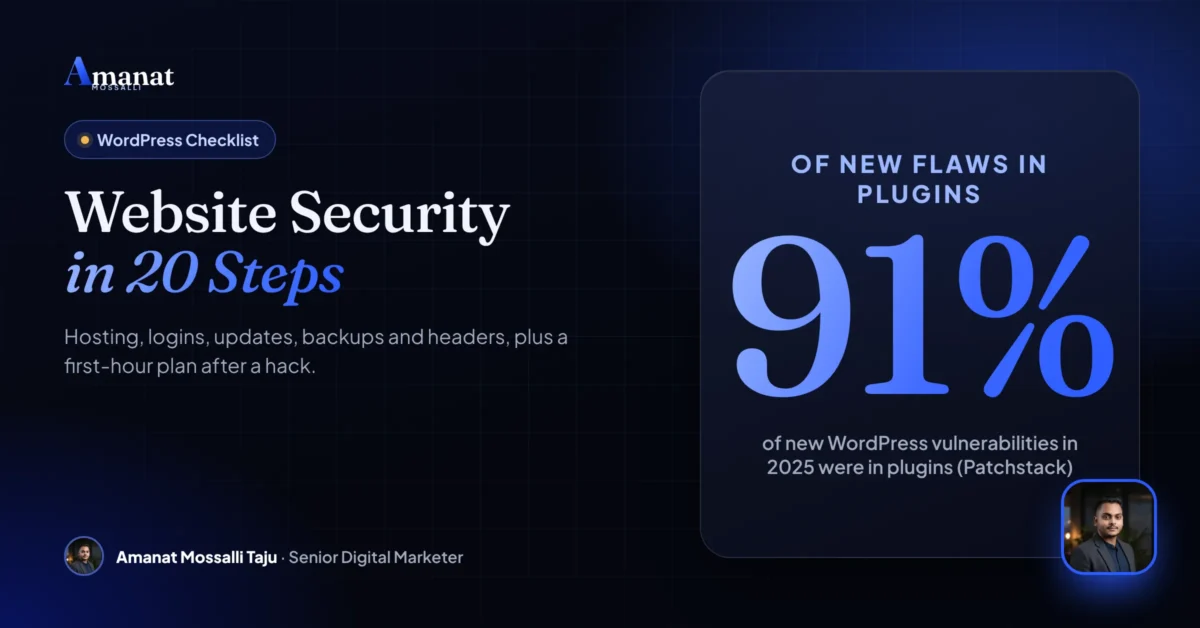
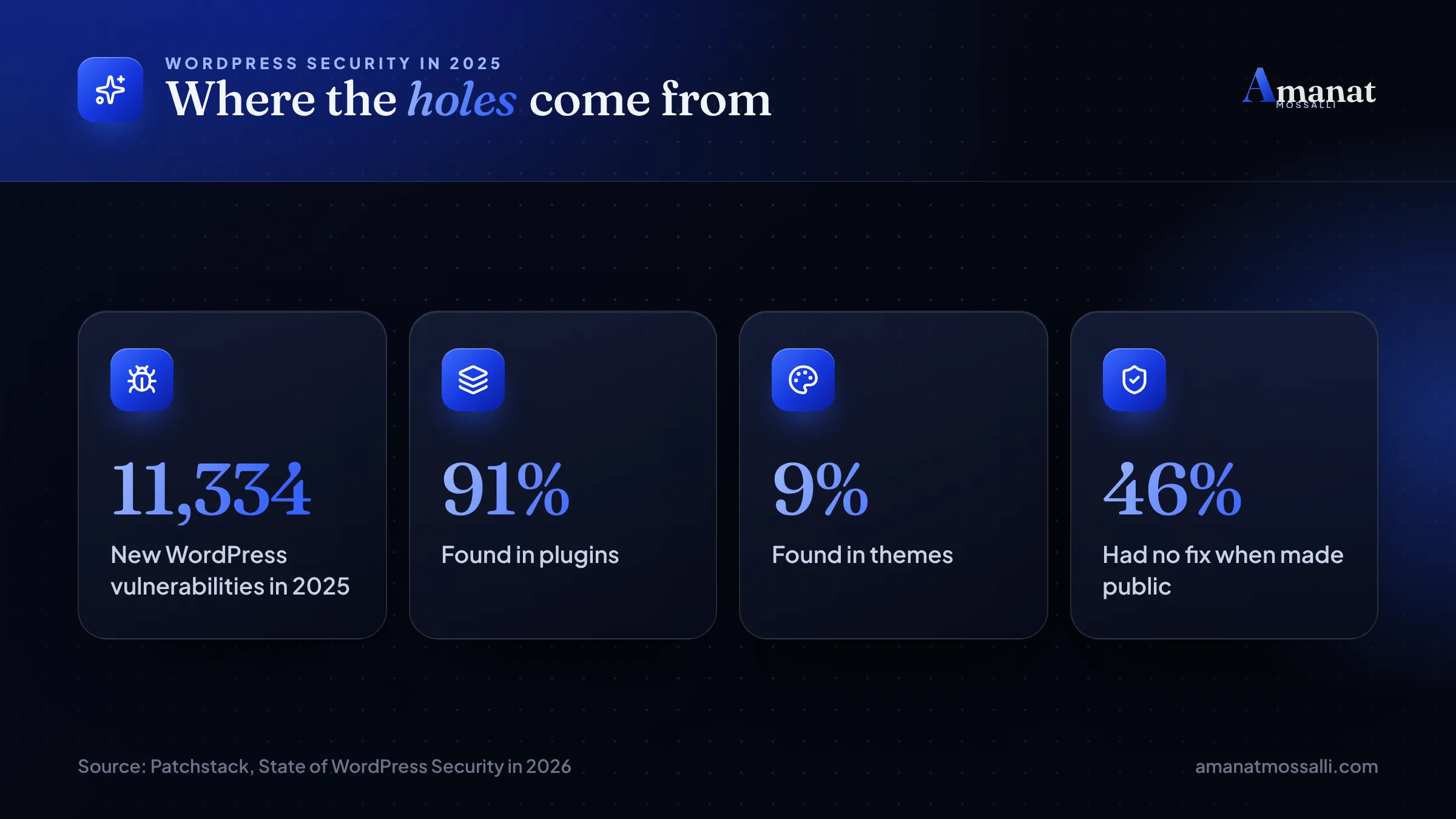
Patchstack’s State of WordPress Security in 2026 report counted 11,334 new vulnerabilities in the WordPress ecosystem in 2025. That’s up 42% on 2024. It put 91% in plugins and 9% in themes. Core had only 6, all low priority.
Patchstack also found that 46% of those flaws had no fix from the developer when they were made public. So updating alone isn’t always enough. Fewer plugins means fewer doors.
Attackers move in hours, not weeks
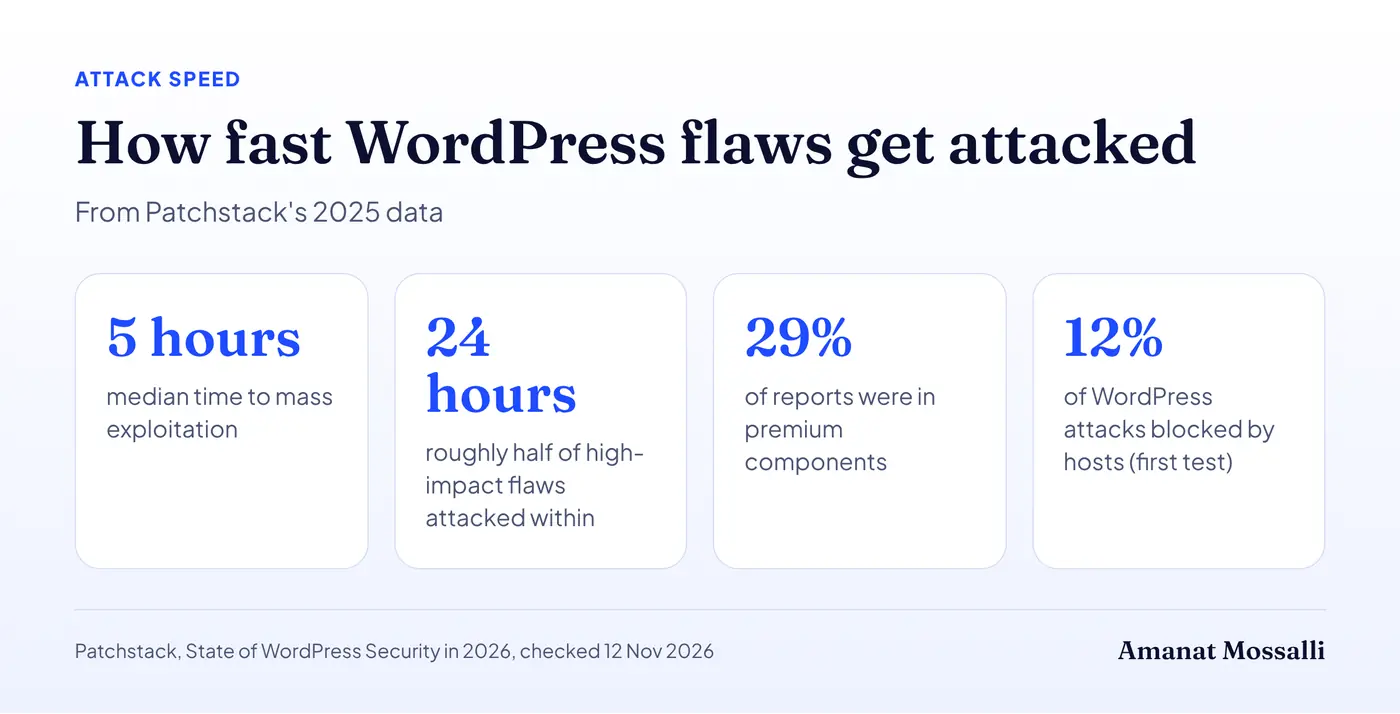
The same report has a number that changed how I schedule updates. For heavily exploited flaws, the weighted median time to mass exploitation was 5 hours. Roughly half of high-impact flaws were attacked within 24 hours.
That means “I’ll update on Friday” can be four days too late. Auto-updates and a firewall that patches virtually matter more than they did a few years ago.
Paid plugins are not automatically safer
Many owners here assume a premium plugin is a safe plugin. Patchstack’s data says otherwise. Premium components made up 1,983 valid reports, or 29% of all reports. Patchstack says 76% of those were exploitable, and paid components had three times as many known exploited flaws as free ones.
Paying for a licence still matters. It gets you updates. It just doesn’t replace them.
Your host’s firewall is only part of the answer
Patchstack also tested common hosting defences. In its first test, hosts blocked 12% of WordPress-specific attacks. In a broader second test, they blocked 26% of all attacks. A host’s protection is a floor, not a fence.
Broken access control was the most exploited type. In simple terms, a plugin lets someone do things they shouldn’t, like change settings without logging in.
Hosting, SSL and File Transfer: Steps 1 to 3
Your host is the ground your site stands on. Cheap shared hosting isn’t always bad. Neglected hosting is.
1. Pick a host that keeps servers patched
Ask the host three plain questions. Which PHP versions do you offer? How often do you patch servers? Do you isolate accounts on shared servers? A host that can’t answer clearly is a risk, wherever it’s based.
The PHP version is the easiest thing to check. Open Tools, then Site Health, then Info, then Server in your dashboard. WordPress’s requirements page recommends PHP 8.3 or greater. It warns that older legacy setups have reached end of life and “may expose your site to security vulnerabilities”.
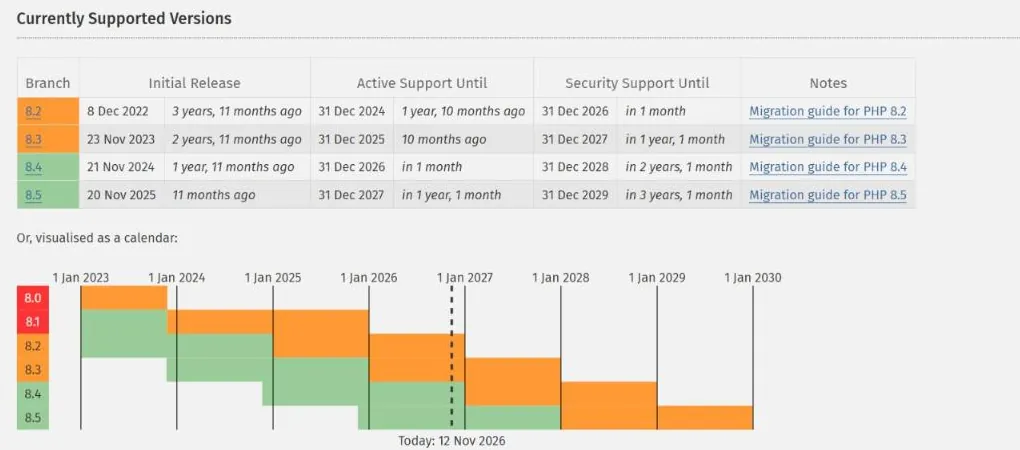
Here’s where each PHP branch stands on php.net’s supported versions page, checked 12 November 2026.
| PHP branch | Active support until | Security fixes until | My advice |
|---|---|---|---|
| 8.1 or older | Not listed | No longer supported | Move this month. |
| 8.2 | 31 Dec 2024 | 31 Dec 2026 | Plan the move now. |
| 8.3 | 31 Dec 2025 | 31 Dec 2027 | Fine for now. |
| 8.4 | 31 Dec 2026 | 31 Dec 2028 | Good choice. |
| 8.5 | 31 Dec 2027 | 31 Dec 2029 | Test plugins first. |
Switch PHP on a staging copy first. Old plugins sometimes break on a new version, and that’s useful to know too. A plugin that breaks on PHP 8.3 is probably not being maintained.
2. Run the whole site on HTTPS
An SSL certificate encrypts the connection between visitor and site. Most good hosts include a free one now. Make sure every page loads on https, including checkout and login. If your site takes bKash or card payments, this isn’t optional. My guide to bKash payment gateway integration covers the payment side.
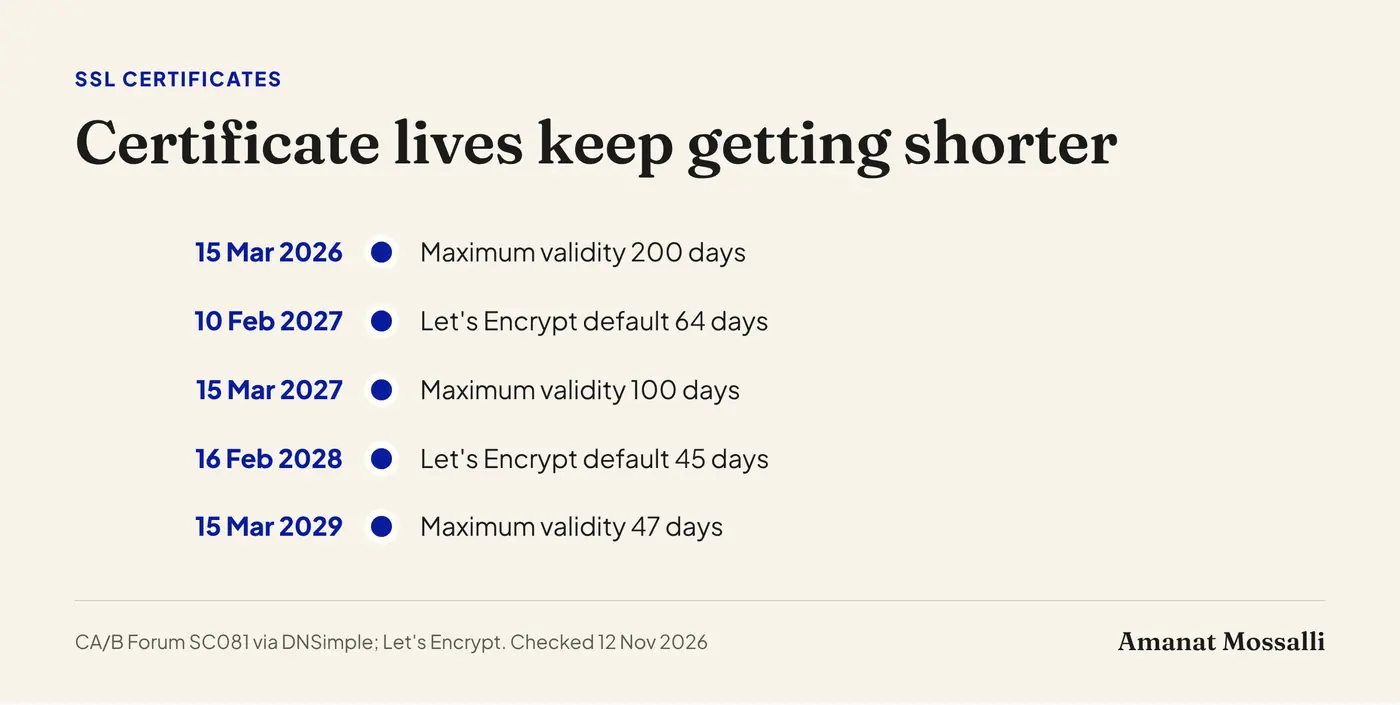
One change in 2026 makes automatic renewal a must. Certificates now live much shorter lives. DNSimple’s summary of CA/Browser Forum ballot SC081 sets the maximum at 200 days from 15 March 2026. It falls to 100 days from 15 March 2027 and 47 days from 15 March 2029.
Let’s Encrypt, which most cPanel hosts use for free certificates, is shortening too. Its default certificates move to 64 days on 10 February 2027 and 45 days on 16 February 2028. Let’s Encrypt tells site owners to avoid manual renewal and to set up alerts if a renewal fails.
For most hosted WordPress sites, the host renews on its own. Just confirm it. If a freelancer once installed a paid certificate by hand, ask who renews it and when.
3. Use SFTP, not plain FTP
The WordPress hardening guide says to use SFTP encryption “if your web host provides it”. Plain FTP sends your password in readable text. Most cPanel hosts support SFTP on the same login.
If you’re still picking a host or a builder, my WordPress development setups start with these three steps done.
How Do You Lock Down WordPress Logins? Steps 4 to 7
Make logins hard to guess and harder to use if guessed. Most break-ins I’ve cleaned started with a weak or reused password.
4. Strong, unique passwords
The hardening guide says a password should be “hard for other people to guess”. It warns against “any numeric-only or alphabetic-only password”. Use a password manager. Each account gets its own long password, including hosting, email and the domain registrar.
Watch for the phone-number password. I still find admin passwords that are the owner’s mobile number. Anyone with your visiting card can guess it.
5. Two factor authentication for WordPress admins
People search “two factor authentication WordPress” expecting something complex. It isn’t. Two-factor login asks for a code from your phone after the password. The hardening guide suggests two-step login “as an additional security measure”. Several free plugins on WordPress.org add it. Turn it on for every admin and shop manager.
6. Fewer admins, right roles
Your content writer doesn’t need admin rights. Give them Editor or Author. Remove old staff and freelancers the day they leave. I often find three or four forgotten admin accounts on small business sites.
7. Limit login attempts
Bots try thousands of passwords on wp-login.php. A security plugin or your host’s firewall can block an IP after a few failures. Pair this with two-factor login and guessing becomes pointless.
Updates and Plugins: Steps 8 to 11
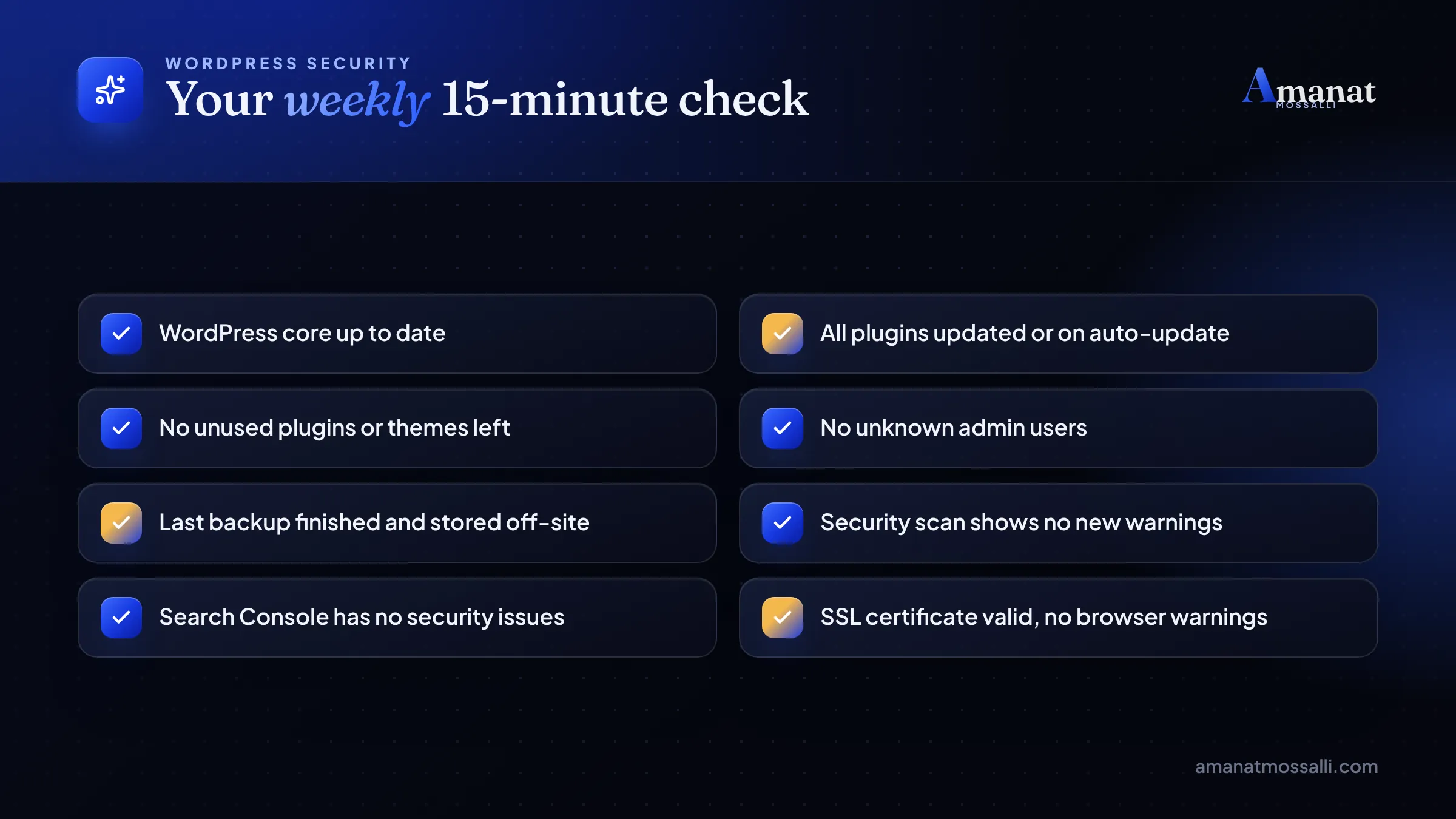
This group does the most work for the least effort. Fifteen minutes a week covers it.
8. Update WordPress core
The hardening guide is blunt. Older versions “are not maintained with security updates”. The WordPress 7.1.4 release notes make the same point: only the most recent version is actively supported. That release came out on 28 October 2026 with several security fixes.
Minor security releases install automatically on most sites. Major versions need a click, so check monthly.
9. Turn on plugin and theme auto-updates
WordPress’s auto-updates page explains that since version 5.5 you can enable auto-updates plugin by plugin. Go to Plugins and use the link in the Automatic update column. You can also select several plugins and turn it on in bulk.
By default WordPress runs auto-updates twice per day. It emails you when updates succeed or fail. If updates never seem to run, the same page says to check Tools, then Site Health, for cron problems.
On a busy WooCommerce store, I’d auto-update security and small plugins. I’d update the big ones, like WooCommerce itself, by hand after a backup.
10. Delete what you don't use
A deactivated plugin can still be a risk while its files sit on the server. Delete it. Do the same for old themes, but keep one default theme as a fallback.
11. Install only from trusted sources
The hardening guide says to stick to “the WordPress.org repository or well known companies”. In Bangladesh, the big danger is nulled themes: paid themes shared free in Facebook groups. Many carry hidden code. Saving a few thousand taka isn’t worth your customers’ data.
Early this year a family workshop in Bhuapur that makes prayer mats asked me to run ads to their WooCommerce shop. Before spending a taka on ads, I always check the site. Their admin panel looked clean. But Search Console showed about 300 indexed pages they had never written, all casino spam.
The cause was a premium theme their first developer had downloaded free from a Facebook group. It had created a hidden admin user and injected links that only Google’s crawler could see. We bought a licensed copy of the theme, rebuilt the header and footer, removed the user and changed every password. Within five weeks the spam pages had nearly all dropped out of Google. Only then did we start the ads.
Not on WordPress?
The same website security best practices apply to Shopify, Laravel or a custom PHP site. Update everything, protect logins, back up off-site and watch for changes. Only the buttons differ. Hosted platforms like Shopify handle server updates for you, so your job shrinks to logins, apps and staff access.
What Backup Setup Actually Saves You? Steps 12 to 14
One that runs daily, lives off your server and has been tested. A backup you’ve never restored is a hope, not a plan.
12. Daily off-site backups
WordPress’s guide says to “back up your data regularly, including your MySQL databases”. It adds that “data integrity is critical for trusted backups”. Store copies away from your host, like Google Drive or cloud storage. If the server is hacked or the host shuts down, your backup survives.
13. Keep several copies
Hacks often go unnoticed for days. If you only keep yesterday’s backup, it may already be infected. Keep at least a week of daily copies and a few monthly ones. Make sure at least one copy can’t be changed from the site itself, so an attacker can’t wipe it too.
14. Test a restore
Restore a backup to a staging site once every few months. Time how long it takes. That number tells you how long you’d be offline in a real emergency. If it takes longer than a day, fix that before anything else on this page.
Files, Config and Security Headers: Steps 15 to 18
These settings need hosting or file access. If that’s not you, send this section to your developer.
15. Correct file permissions
The hardening guide gives clear numbers. Folders should be 755 and files 644. For wp-config.php, it says only you and the web server should read it, which “generally means a 400 or 440 permission”.
16. Disable the file editor
WordPress lets admins edit theme and plugin code from the dashboard. Attackers love that. Add define( ‘DISALLOW_FILE_EDIT’, true ); to wp-config.php. The guide says it won’t stop someone uploading bad files but “might stop some attacks”.
17. Change the database prefix on new sites
The default table prefix is wp_. The guide says a different one “can block at least some SQL injection attacks”. Set it during install. Changing it on a live site needs care, so I wouldn’t rush it.
18. Add security headers
Headers are small instructions your server sends with every page. OWASP’s HTTP headers cheat sheet gives these starting values. I checked them again on 12 November 2026.
| Header | OWASP's suggested value | What it does |
|---|---|---|
| Strict-Transport-Security | max-age=63072000; includeSubDomains; preload | Forces HTTPS on return visits. |
| X-Content-Type-Options | nosniff | Stops browsers guessing file types. |
| X-Frame-Options | DENY | Blocks your pages inside other sites’ frames. |
| Referrer-Policy | strict-origin-when-cross-origin | Limits what URL data you share. |
| Permissions-Policy | geolocation=(), camera=(), microphone=() | Turns off features you don’t use. |
| X-XSS-Protection | Don’t set it, or set 0 | Old header that can cause problems. |
| Server and X-Powered-By | Remove, or use non-informative values | Stops you announcing your PHP and server versions. |
OWASP warns that a misconfigured HSTS header or a certificate problem can lock real visitors out. With shorter certificate lives coming, start with a short max-age. Check your SSL renews on its own, then raise it.
Content-Security-Policy is the strongest header. It tells the browser which sources a page may load scripts and styles from. On WordPress, plugins often break under a strict policy. I set it last, in report-only mode first, and test every page.
How Do You Monitor a Site You Don't Watch Every Day? Steps 19 and 20
Let tools watch for you, and check their alerts weekly. Most owners find out about hacks from customers. You want to find out first.
19. Scan and monitor
A security plugin can scan files for changes and known malware. Uptime monitors email you when the site goes down. The hardening guide also describes file integrity monitoring. It notes that an attack “always leave traces”, either in the logs or on the file system.
20. Watch Search Console and logs
Google Search Console has a Security issues report. Google’s help page groups issues into three types: hacked content, malware and unwanted software, and social engineering. Verify your site there and turn on email alerts. The hardening guide calls logs “your best friend” for understanding what happened.
If you don’t have Search Console yet, it’s free. My free SEO audit tool also checks HTTPS and a few basics on your site in a minute. For a deeper look, my guide on how to do an SEO audit shows where hacked spam pages tend to hide.
Do You Need a WordPress Security Plugin?
For most small sites, yes, one good one. It brings scanning, login limits and a basic firewall into one place.
Pick one plugin, not three. Several security plugins fighting each other slow your site and can lock you out. Your host or a service like Cloudflare may already run a web firewall. If so, choose a plugin that doesn’t duplicate it.
A plugin is not a full solution, though. It can’t fix weak passwords, missing backups or a nulled theme. Think of it as an alarm, not a lock. Given Patchstack’s 5-hour exploitation figure, I’d favour one that can block a known flaw before the plugin’s own fix arrives.
Owner, Developer or Host: Who Does Which Step?
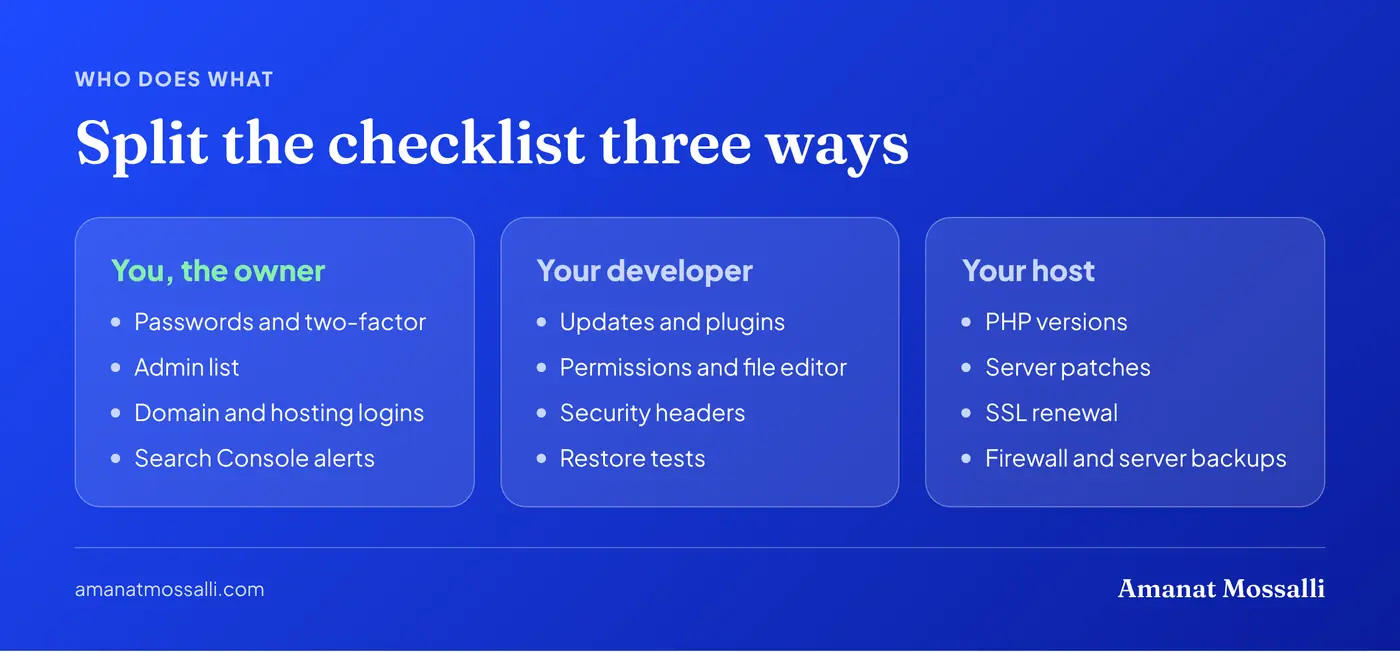
Most hacked sites I’ve cleaned had the same gap. The owner thought the developer handled security. The developer thought the host did. The host thought it was the owner’s job. Write the split down.
| Who | Steps they own | How often |
|---|---|---|
| You, the owner | Passwords, two-factor, admin list, domain and hosting logins, Search Console alerts (4, 5, 6, 20) | Weekly check, plus the day staff leave. |
| Your developer | Updates, plugin choice, permissions, file editor, headers, restore tests (8 to 11, 14 to 18) | Monthly, or on a retainer. |
| Your host | PHP versions, server patches, SSL renewal, firewall, server-side backups (1 to 3, 7, 12) | Ask them in writing once a year. |
The owner’s column matters most. A developer can leave. A host can change. The domain, hosting account and Search Console must stay in your name, with your email. I make every new client do this before I touch their ad accounts.
Customer Data and Bangladesh’s New Privacy Law
If your site stores names, phone numbers and addresses, security is no longer only your problem. It’s a legal one too.
The government issued the gazette for the Personal Data Protection Ordinance, 2025 on 6 November 2025, The Business Standard reported. Financial, health, genetic and biometric data get extra protection.
The Daily Star’s summary says breaches must be reported “promptly” to the new data authority. It says offences can carry up to seven years in prison, a fine up to Tk 20 lakh, or both. Some sections start 18 months after the gazette. These are press summaries, not the gazette text, so ask a lawyer about your own case.
For a small shop, the practical steps are the ones above. Collect only the data you need. Don’t keep old order exports on your laptop. Make sure staff logins are personal, not shared. If you’re hacked, write down what was exposed and when you found out.
FAQ: Website Security Checklist
How do I protect my website from hackers?
Is WordPress secure?
Which WordPress security plugin is best?
Do I need an SSL certificate for a small website?
How often should I back up my website?
How do I know if my WordPress site is hacked?
How long does website malware removal take?
The First Hour After a Hack
Don’t panic, and don’t start deleting files at random. Work through this order. It protects your customers first, then your data.
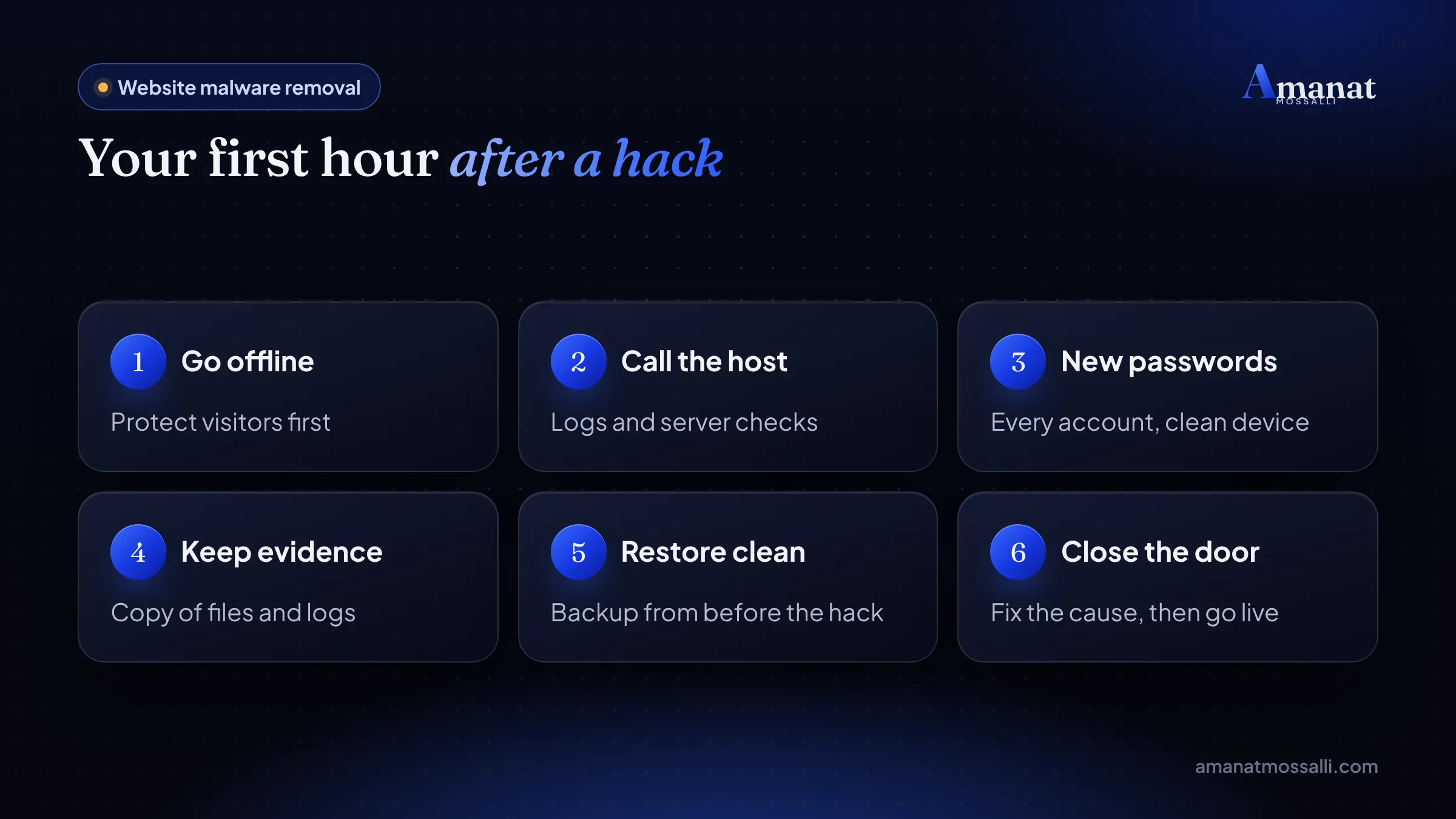
No clean backup? Then you need a manual clean-up. That means comparing core files to a fresh copy, checking every plugin and theme, and searching the database for injected code. It’s slow, careful work. Get help if you haven’t done it before.
“Bhai, my website is showing a red warning page. Customers are calling me.” That WhatsApp reached me at 7:15 one morning last year. It came from a man in Kalihati who sells LED lights and switch boards online to electricians.
His site had been quietly hacked for days. The door was a slider plugin nobody had updated in two years. His first developer’s admin account was still active too. His host did keep backups, but only on the same server, and the two newest were already infected.
We took the site offline, restored a copy from nine days earlier and re-entered the orders by hand. Then we deleted eleven unused plugins and turned on two-factor login. The clean-up took two days. Google cleared the warning six days after we asked for a review. His online orders that week fell to about a third of normal. They were back to normal within a month.
How Do You Get a Google Hacked Warning Removed?
Fix every issue first, then ask Google for a review in Search Console. Google’s page is clear: fix the issue throughout your site. Fixing only some pages won’t earn a partial return.
In the request, explain what happened, what you fixed and how. Google says most reviews “can take several days or weeks”. It also asks you not to resubmit before you get a decision on a pending request. Doing so can slow the next review.
During that wait, your search traffic will likely drop. That’s why prevention is so much cheaper. My guide on why SEO matters for e-commerce shows what that traffic is worth.
Security Mistakes I Keep Finding on Bangladeshi Sites
I’ve worked with 235+ brands, and I check the site before every ad campaign. These come up again and again. Most come from a rushed first build. They’re all fixable in an afternoon.
- Nulled premium themes and plugins downloaded from Facebook groups or random sites.
- The developer’s admin account still active years after the project ended.
- Backups stored only on the same server as the site.
- Ten plugins doing one job, half of them abandoned by their makers.
- The same password for hosting, WordPress and email.
- Domain in the developer’s name, so you can’t act fast in an emergency.
- PHP years out of date, because nobody asked the host to switch.
- No HTTPS on the checkout page. Customers see a warning right where they pay.
Some of these overlap with the wider list in my digital marketing mistakes for Bangladeshi businesses. Ownership of your own accounts comes up in both. If you’re planning a new site, my breakdown of website development cost in Bangladesh shows where security fits in the budget.
A Four-Week Plan to Work Through the 20 Steps
Twenty steps at once is how checklists die. Spread them over a month instead.
- 1Week 1, one evening. Do every “Today” item: HTTPS, passwords, two-factor, core update, auto-updates, delete unused plugins, start daily off-site backups.
- 2Week 2, with your developer. Remove old admins, set login limits, SFTP, file permissions and the file editor switch.
- 3Week 3, with your host. Ask about PHP, server patches and SSL renewal. Move PHP on staging first.
- 4Week 4, the hard part. Restore a backup to staging and time it. Add the security headers. Turn on Search Console alerts.
After that, the weekly 15-minute check in the second image above keeps you there. Put it in your calendar for a quiet morning, not a sale day.
The Kalihati site and the Bhuapur site had one thing in common. Both owners trusted that someone else was watching. Nobody was. Pick the day this week when that changes.

Amanat Mossalli Taju
Senior Digital Marketer & SEO Expert, Dhaka, BangladeshI have grown 235+ brands over more than seven years with SEO, Google and Meta Ads, server-side tracking, WordPress and AI automation. Half of my clients are in the UK, USA, Australia and Canada. Everything I write here comes from real client work.
Want this done for your business?
Book a free 15-minute call. I look at your site and ads before we talk, so you leave with clear next steps.